How to Share Your Location With Your Partner (iPhone + Android)
Step-by-step guide to setting up two-way location sharing with a partner on iPhone and Android. Apps that respect privacy, what to share, and how to pause it.
On this page 7 sections
- The 3 main ways couples share location in 2026
- iPhone to iPhone: Find My Friends (built into Find My)
- Android to Android: Google Maps location sharing
- iPhone to Android (cross-platform): Google Maps for both
- What location sharing actually shows (and what it doesn’t)
- How to pause or stop sharing without an awkward conversation
- Privacy boundaries: what to discuss before turning it on
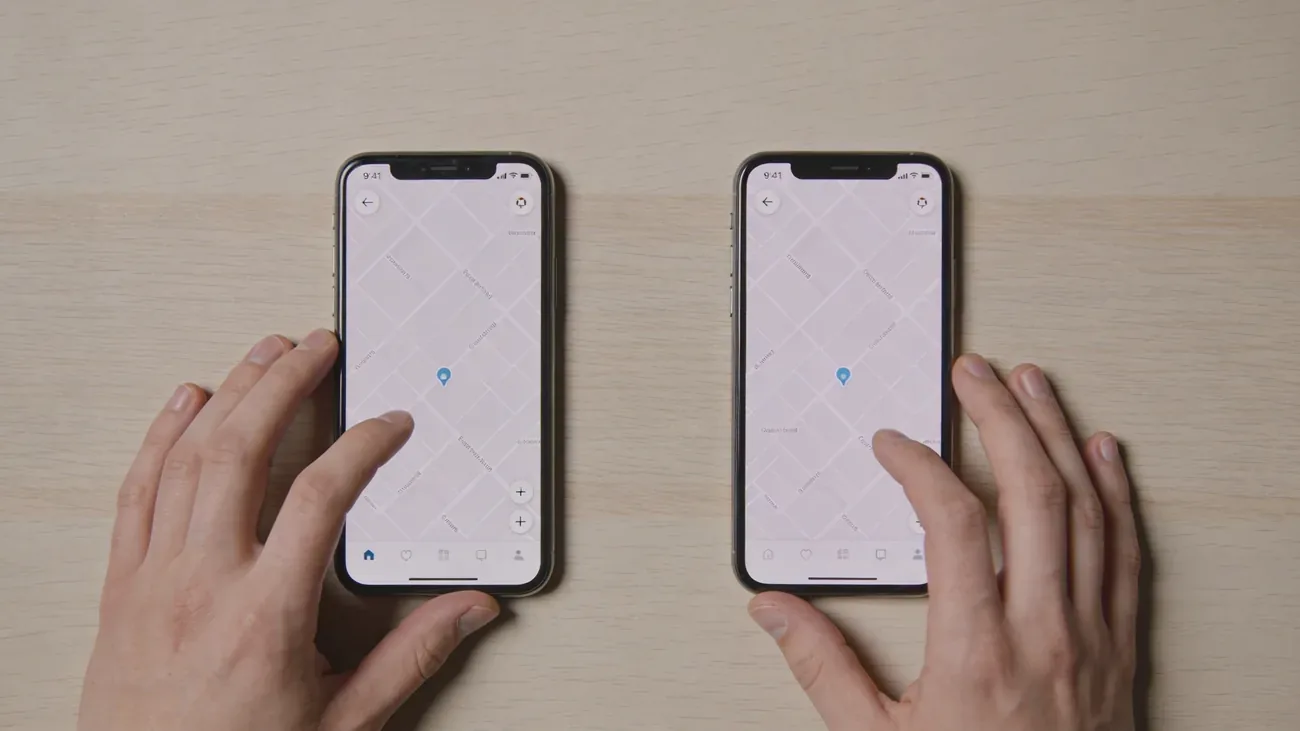
You and your partner both want to see where the other is. Maybe one of you commutes home late, maybe you travel separately, maybe a long-distance stretch makes a small dot on a map feel reassuring. Whatever the reason, modern phones can do this in about two minutes, for free, without spyware and without a third-party subscription.
This guide covers the three main consent-based ways couples share location, with step-by-step setup for iPhone, Android, and the cross-platform mix that most real couples actually have. The framing throughout is two-way and mutual: both partners agree, both share, and either person can pause without explaining why. Setup steps come from Apple’s published Find My documentation, Google Maps’ location sharing reference, and direct testing on iOS 17/18 and Android 14/15.
TL;DR: If you both have iPhones, use Find My. If you both have Android, use Google Maps. If one has iPhone and the other Android, both use Google Maps. Setup takes under five minutes per phone. Always set it up together and agree on the rules before you switch it on.
The 3 main ways couples share location in 2026
There are three real options most couples land on. Each has a different trade-off between simplicity, cross-platform support, and extra features.
| Option | Works between | Cost | Best for |
|---|---|---|---|
| Apple Find My | iPhone to iPhone (and other Apple devices) | Free, built in | Couples already in the Apple ecosystem |
| Google Maps location sharing | iPhone to iPhone, Android to Android, iPhone to Android | Free, built in | Mixed-platform couples or anyone who wants one universal solution |
| Third-party apps (Life360, Couple, Locator24) | All platforms | Free tier + paid plans | Couples who want geofence alerts, history, or driving reports |
Apple Find My and Google Maps are the right starting points. They are made by the platform owners, do not require a separate account beyond the one you already have, and respect a clear opt-in model. Third-party apps make sense only when you need extras like driving alerts or arrival notifications. We have a separate breakdown in couple location sharing apps compared if you want to dig into the third-party tier.
iPhone to iPhone: Find My Friends (built into Find My)
If you both use iPhones, Find My is the path of least resistance. There is nothing to install. It is part of iOS and uses the Apple ID you already signed in with.
To share your location from an iPhone:
- Open the Find My app (the green radar icon).
- Tap the People tab at the bottom.
- Tap Share My Location (or the + button if you have shared with others before).
- Type or pick your partner’s name from your contacts. They need an Apple ID linked to that contact’s email or phone number.
- Tap Send.
- Choose a duration: Share for One Hour, Share Until End of Day, or Share Indefinitely.
Your partner gets a notification asking if they want to share back. When they accept and share their location too, you both see each other in the People tab with a live map dot. According to Apple’s support documentation, Find My uses your Apple ID across all your devices, so the location reflects whichever Apple device is closest to you (iPhone, iPad, or Apple Watch).
A few useful details:
- Battery percentage of the shared person is visible on iOS 17 and later, right under their name.
- Notifications can be set per person, for example a chime when your partner arrives home or leaves work.
- Apple Watch owners see the same Find My data on the wrist, which is convenient for commuters.
Find My only works between Apple devices. There is no Android client for it and Apple has stated this is a deliberate platform decision, not a temporary limitation.
Android to Android: Google Maps location sharing
On Android, the equivalent is built into Google Maps. The Maps app is preinstalled on most Android phones, and the location sharing feature is tucked into the profile menu.
To share your location from an Android phone:
- Open Google Maps.
- Tap your profile picture in the top right corner.
- Tap Location sharing.
- Tap New share (or Share location on some Android versions).
- Pick a duration from the slider: For 1 hour, 8 hours, 24 hours, 3 days, or Until you turn this off.
- Tap your partner’s name from your Google Contacts, or enter their Gmail address.
- Tap Share.
According to Google’s official documentation, the recipient gets a notification with a link that opens Google Maps and pins your live position. To make the sharing two-way, your partner repeats the same steps from their phone and shares back to you.
Google Maps shows several extra signals on Android 12 and later:
- The shared person’s battery level as a percentage.
- Last seen timestamp if their phone briefly loses signal.
- Travel mode (driving, walking) when motion is detected.
- The route, if they have an active navigation set in Maps.
You can change the duration of an active share at any time. Tap the person’s circle in Location sharing, tap the duration, and pick a new value. There is no need to stop and restart.
iPhone to Android (cross-platform): Google Maps for both
This is the most common real-world setup, and the one Apple’s Find My cannot help with. Find My has no Android version, so an iPhone-to-Android couple needs a tool that works on both.
Google Maps is that tool. Both platforms have a fully functional Maps app with the same location sharing feature. Both partners need a Google account, which an iPhone user can create for free without switching anything else about their phone.
To set up cross-platform sharing:
- iPhone partner: Install Google Maps from the App Store if not already installed. Sign in with a Google account.
- Android partner: Open the existing Google Maps app and sign in if not signed in.
- Each person opens Maps, taps their profile picture, taps Location sharing, taps New share, picks a duration, and shares to the other person’s Gmail address.
- Both partners accept the incoming share.
Once set up, the experience is the same on both phones: you each see the other on the Maps app’s map view, with the same accuracy and refresh rate. Battery percentage and last seen show on Android only. The iPhone partner can still use Apple’s Find My with other Apple-only contacts (like family on iPhones) at the same time. The two systems do not conflict.
A couple of practical notes:
- Notifications: Google Maps does not send custom arrival alerts on iOS the way Find My does. If you want geofence-based alerts (for example, “ping me when she gets home safe”) you need a third-party app like Life360.
- Background access: On both platforms, set Google Maps location permission to Always rather than Only While Using, otherwise the share goes dark when the app is backgrounded.
What location sharing actually shows (and what it doesn’t)
Couples often imagine more than what these apps actually transmit. Here is the honest list.
What is shared:
- Current real-time location, with refresh every 1 to 3 minutes.
- Approximate accuracy radius (the blue circle on the map).
- Battery percentage on Find My (iOS 17 and later) and Google Maps (Android 12 and later).
- Last seen time if the phone briefly loses signal.
What is not shared:
- Historical route or trail. Neither Find My nor Google Maps location sharing shows where you have been in the last hour, only where you are now. Google Timeline is a separate, private feature that only you can see in your own account.
- Audio, photos, messages, app activity, browsing history, contacts, or anything besides the dot on the map.
- Speed graphs, driving scores, or notification of phone use, unless you opt into a third-party app like Life360.
- Any data when the phone is fully off, has no signal, or has location services disabled. The map shows the last known point with a timestamp instead.
This is a very narrow, very specific data flow: a coordinate pair, accuracy, and a battery number. That narrowness is a feature. It is what makes consent-based location sharing different from the spyware-style apps that scrape messages and call logs. If you want to understand the difference in detail, see our companion piece on how phone location tracking actually works and how to detect if your phone is being tracked.
How to pause or stop sharing without an awkward conversation
Either partner can pause or stop sharing at any time. Both apps handle this quietly, without a “your partner stopped sharing” alert.
Find My (iPhone):
- Open Find My, tap People.
- Tap your partner’s name.
- Scroll down and tap Stop Sharing My Location.
After this, your partner sees “Location Not Available” or “No Location Found” under your name. There is no push notification telling them you stopped.
Google Maps:
- Open Maps, tap your profile, tap Location sharing.
- Tap the partner’s circle at the top.
- Tap Stop.
The share disappears from their list. Again, no alert, no notification.
A healthy expectation between partners is that pausing is normal and not a signal of distrust. Phones die, signal drops, work meetings happen, doctors’ offices ask for phones to be off. Treat a missing dot as “their phone is busy” rather than “they are hiding something.” If pausing becomes a recurring source of friction, the problem is the relationship dynamic, not the app, and we cover that in is location sharing healthy in a relationship.
Privacy boundaries: what to discuss before turning it on
Before either of you taps Share, sit down for ten minutes and answer these five questions out loud. The technology is fine. The friction always comes from unspoken assumptions.
- Indefinite or time-limited? Some couples like indefinite (“we just always know”). Others prefer time-bound shares that auto-expire each evening or each trip. Both are valid. Pick one and revisit in a month.
- Both directions or one-way? Two-way is the consent-positive default. If only one of you is sharing while the other is not, name that asymmetry openly and decide if it is okay or if it should change.
- Allowed to pause without explaining? Agree in advance that either person can pause at any time, no questions asked. The alternative leads to silent resentment.
- What counts as checking too much? Glancing at the map a few times a day is fine. Watching it like a stock ticker is not. If one of you notices the other doing the latter, that is a conversation, not an app problem.
- What happens if the relationship ends? Decide now, while things are calm, that breaking up means stopping the share within 24 hours. It avoids messy ambiguity later.
If any of these questions feel hard to answer honestly, that is the real signal. The dot on the map is a tool. Whether it makes the relationship better or worse depends entirely on the conversation around it. Set up two-way location sharing only after this conversation, not before.
Questions & answers
Things readers ask about this
5 questions · updated Apr 2026