Why Does My iPhone Show the Wrong Location? 8 Real Causes
The blue dot is a guess made by GPS, Wi-Fi, and cell towers stitched together. When it lies, one of eight specific things broke. Here is the order to check them.
On this page 11 sections
- How the iPhone actually decides where you are
- Cause 1: GPS can’t see the sky
- Cause 2: Apple’s Wi-Fi database has the old router
- Cause 3: Stale location cache
- Cause 4: VPN or Private Relay is fooling some apps
- Cause 5: System clock is wrong
- Cause 6: App-level Precise Location is off
- Cause 7: Significant Locations and the on-device fingerprint drift
- Cause 8: Reset Location & Privacy (the nuclear option short of erase)
- When it is hardware
- The 5-minute order to check
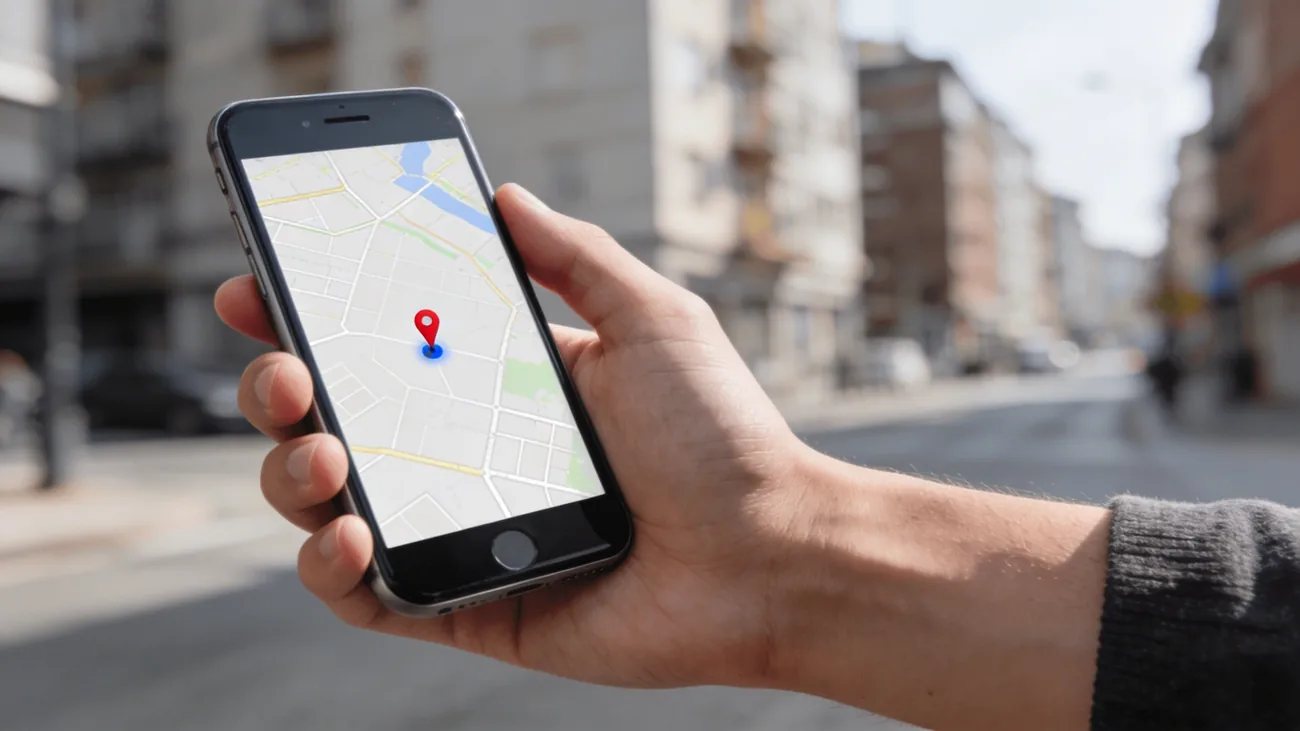
Open Maps and the blue dot is sitting two miles from where you actually are. Or it is sitting in the right ZIP code but moving in slow loops as you stand still. Or it shows your home as a building three blocks over, and has done for a month. The blue dot is the most-trusted thing on the phone until it isn’t, and when it lies, the failure mode is rarely a single broken sensor. It is one of about eight specific things, all fixable in under ten minutes if you check them in order.
TL;DR. The blue dot is the fused output of GPS, Wi-Fi, cell towers, and Bluetooth, with the phone choosing whichever signal is most accurate at the moment. When it is wrong, one of those four inputs is feeding bad data, the cache between them is stale, the system clock is off, or hardware is damaged. Walk down the list in order and stop at the first thing that fixes the dot.
How the iPhone actually decides where you are
Before the eight causes, the architecture. iOS computes your location by fusing four signals:
- GPS (and GLONASS, Galileo, BeiDou, QZSS): line-of-sight to satellites, accurate to about 3 to 5 meters outdoors, useless indoors and in deep urban canyons.
- Wi-Fi triangulation: Apple keeps a global database of public Wi-Fi BSSID locations, and the phone matches the access points it sees against that database. Indoors and in cities, this is often more accurate than GPS.
- Cell tower triangulation: tower IDs and signal strength resolve to a few hundred meters, sometimes better. The fallback when GPS is dark.
- Bluetooth and ultra-wideband: short-range, used for AirTag-style precision and Indoor Maps in airports, malls, and stadiums.
When you see a wrong dot, one of those four is feeding bad data and the fusion is trusting it more than it should. The eight causes below map directly to that architecture.
Cause 1: GPS can’t see the sky
Indoors, in a parking garage, in a tunnel, on a subway, between tall buildings on a narrow street: GPS gets blocked or bounced, and the phone falls back to Wi-Fi and cell triangulation. The dot drifts because Wi-Fi resolution is coarser, and signals reflect off building faces, dragging the position by tens of meters.
The fix: walk into the open for 30 seconds. The dot sharpens as soon as the phone sees four or more satellites cleanly. If you cannot, accept that 5-to-50-meter drift indoors is the real performance ceiling, not a bug.
Cause 2: Apple’s Wi-Fi database has the old router
This is the source of “my iPhone says I am in Texas but I live in California now.” Apple’s Wi-Fi database registered your home router’s BSSID at a previous address. When the router moves, the database does not auto-update for days, weeks, or sometimes months, depending on how often other Apple devices pass it.
While the database is stale, the phone trusts the registered Wi-Fi position over GPS, especially if you are indoors when you check.
The fix: toggle Wi-Fi off in Control Center for 60 seconds and reopen Maps. The dot snaps to the GPS-only position. If that is correct, the cause is the Wi-Fi entry. To accelerate the database update, leave the iPhone outside near the router for an hour with location services on; Apple’s crowdsourced learning will resync.
Cause 3: Stale location cache
iOS caches the most recent location fix to give apps an instant response while the phone is acquiring a fresh one. If the cache is stuck, apps see the old location indefinitely, and the dot may not refresh until the phone moves or you force a re-acquire.
The fix:
- Open Maps, force-quit it (swipe up from the home indicator and flick the Maps card up).
- Reopen Maps. The first reading will be cached, the second should be live.
- If still stuck, Settings, Privacy and Security, Location Services, off, wait 20 seconds, on. This forces a full re-acquire across every app.
This is the “have you tried turning it off and on” of location, and it works more often than people expect.
Cause 4: VPN or Private Relay is fooling some apps
A VPN does not move your GPS location. The GPS chip reports its true coordinates no matter what the network is doing. But many apps don’t read GPS. They read your IP address and ask a geolocation service like MaxMind or IP2Location where the IP is. A VPN routes the IP through wherever the exit node lives.
Same logic for iCloud Private Relay: when on, Safari and many apps see an Apple-relay IP, not your home IP. Sites that geolocate by IP show you in a different city.
The split: Maps, Find My, Weather, Wallet, and any app that asks for the Location Services permission use real GPS. Ad networks, streaming services, news paywalls, and most websites use IP. The cure for the latter is to turn off the VPN or Private Relay when you need accurate web-side location, not to fight Maps.
Cause 5: System clock is wrong
GPS satellites broadcast precise time-stamped signals. The phone calculates distance to each satellite by measuring how long the signal took to arrive, then trilaterates a position. If the clock is wrong by even seconds, the math is wrong by miles.
The fix: Settings, General, Date and Time, Set Automatically must be on. Always. Manually overriding the clock for daylight-saving disputes, time-zone control, or App Store regional tricks breaks GPS until corrected. People who deliberately wrong-set the clock for app exploits are usually surprised when location goes haywire next.
Cause 6: App-level Precise Location is off
Since iOS 14, every app’s Location permission has a second toggle: Precise Location. When off, the app gets a coarse 1-to-10-mile blob instead of an exact dot, by design.
The fix: Settings, Privacy and Security, Location Services, find the app, set permission to While Using and Precise Location to on. Maps, Find My, Weather, ride-share apps, and food delivery all benefit. Apps you do not trust with precision (some news apps, some games) should stay coarse.
This setting is the most common reason that “my location is fine in Maps but wrong in this other app.” The system isn’t broken; the per-app permission is doing what it was set to do.
Cause 7: Significant Locations and the on-device fingerprint drift
Significant Locations is the encrypted on-device log of places you frequent. It is also the database that some Apple features (parked-car pin, time-to-leave reminders, Maps history) read from. If Wi-Fi router or cell-tower fingerprints in your area have changed, the entries can become inaccurate, and downstream features show wrong addresses.
It is end-to-end encrypted; Apple cannot see it, and turning it off does not share or delete data with Apple, only with your own iCloud-paired devices.
The fix: Settings, Privacy and Security, Location Services, System Services, Significant Locations, Clear History. The log rebuilds over the next week as you go about your routine. Side effect: parked-car pins and time-to-leave alerts will be quiet for a few days while it relearns.
Cause 8: Reset Location & Privacy (the nuclear option short of erase)
When the cache is corrupt, when several per-app permissions are tangled, or when a recent iOS update left the location services state in a bad place, the cleanest reset is built into the OS:
Settings, General, Transfer or Reset iPhone, Reset, Reset Location & Privacy.
This wipes:
- Every per-app Location permission (back to “ask next time”)
- Every per-app Tracking and Bluetooth permission
- Cached location-services state
It does not erase Significant Locations, photos, accounts, or anything else. It is reversible only by manually re-granting the permissions as apps ask for them, but that is a 5-minute side effect and it fixes a real share of “everything location is wrong” cases.
When it is hardware
If you have walked through all eight causes and the dot still lies, the next layer is hardware. The GPS antenna on most iPhones runs along the top edge of the device, integrated into the antenna bands. Damage modes:
- Drop damage on the top corner. Symptom: outdoors, in clear sky, the phone shows “Searching” indefinitely or finds zero satellites.
- Water damage to the antenna assembly. Symptom: GPS works in some weather, fails in others, drifts more than usual.
- Faulty replacement parts after a third-party screen or back-glass repair, where antenna ground straps were not reseated correctly.
The next step: make a Genius Bar appointment and ask for an Apple Diagnostics test. The test takes 5 minutes, runs the GPS subsystem against known signals, and produces a pass/fail report. If it fails, repair or replacement is the only fix. No setting toggle revives a broken antenna.
The 5-minute order to check
If you read no further, the ordered list:
- Walk into the open, wait 30 seconds (Cause 1).
- Toggle Wi-Fi off, reopen Maps (Cause 2).
- Force-quit Maps, then full Location Services off-on cycle (Cause 3).
- Turn off VPN and Private Relay if either is on (Cause 4).
- Confirm Settings, General, Date and Time, Set Automatically on (Cause 5).
- Settings, Privacy and Security, Location Services, app, Precise Location on for the failing app (Cause 6).
- Significant Locations, Clear History if specific addresses keep showing wrong (Cause 7).
- Reset Location & Privacy as the catch-all before hardware diagnostics (Cause 8).
Eight causes, eight checks, fifteen minutes total worst case. The blue dot is rarely broken in a way that needs Apple. It is almost always one specific signal feeding wrong data into a system that, until you fix the signal, is doing exactly what it was designed to do.
Questions & answers
Things readers ask about this
7 questions · updated May 2026