How to Find Your Car in a Parking Lot With Your Phone
Apple Maps, Google Maps, Waze, and a $29 backup that never runs out of battery. The four-layer setup that makes 'where did I park' a question you stop asking.
On this page 7 sections
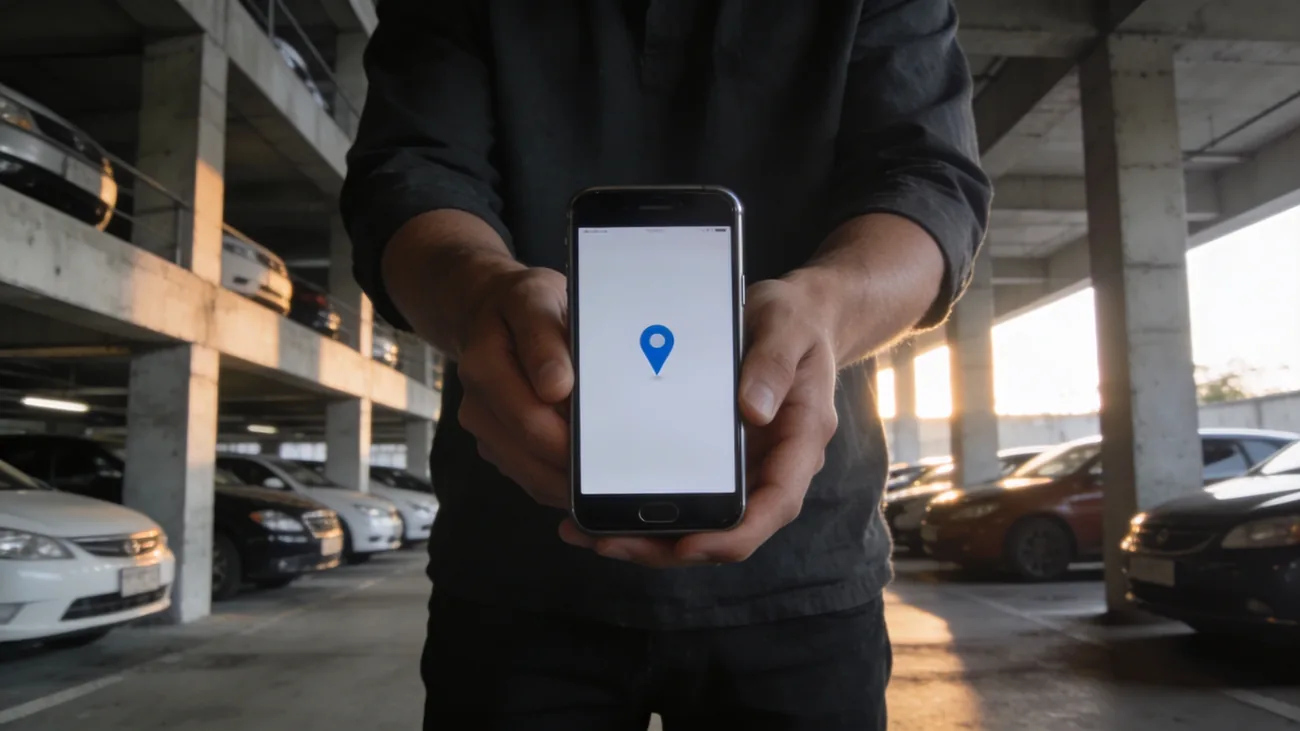
The mall parking garage is six floors, the rows are color-coded but the colors run together by the third level, and the bag of groceries you are carrying makes every aisle look like every other aisle. You pull out your phone. Two taps later, a blue dot tells you the car is one floor up, twelve spaces to your left.
That outcome is not an accident. It is the result of a feature that ships on every modern phone, plus a $29 hedge for the days the feature fails. Most parking-lot panic is a two-button fix. The setup takes ten minutes once and then disappears into the background of your week.
TL;DR. On iPhone, Apple Maps drops a Parked Car pin automatically when your phone disconnects from the car’s Bluetooth or CarPlay. On Android, Google Maps requires one tap at the moment of arrival. Waze adds a third option that survives where the others fail. An AirTag or Chipolo in the glove box is the backup for when none of them trigger. The rest of this guide is the order to set them up and the failure modes to know.
How Apple Maps Parked Car actually works
The feature is older than people think. Apple shipped it in iOS 10, on every iPhone 6 or newer, and it has worked the same way ever since. The trigger is mechanical: when your iPhone is paired to the car over Bluetooth or CarPlay and that connection ends, Maps assumes you parked. It writes a marker at the GPS coordinates of the disconnect and tags it Parked Car.
Three switches have to be on for that chain to fire:
- Settings, Privacy and Security, Location Services must be enabled.
- Inside Location Services, System Services, Significant Locations must be on. The parking feature reads from this private on-device log.
- Settings, Apps, Maps, Show Parked Location must be on. This is the toggle that ties the disconnect event to a marker.
To find the car, open Maps and either type Parked Car in the search field or pull up the bottom card and look for the section labeled Parked Car. Tap the result, get walking directions, and add a note (“level B2, row 14”) if you want a written breadcrumb on top of the dot.
The pin clears itself after about a day or when you reconnect to the same car. There is one quiet exception: Maps does not drop a pin at addresses it has learned as Home or Work, because Apple judged the marker would be more annoying than useful in places you park every day.
When the iPhone pin does not appear
Three failure modes account for almost every “it didn’t work” complaint:
- The car has no Bluetooth or CarPlay. Vehicles older than roughly the 2014 model year often lack any wireless pairing, and a phone plugged in only by a charging cable does not count. The feature never triggers.
- Show Parked Location is off. Apple has flipped the default in some iOS releases. After a major update it is worth confirming the toggle survived.
- Significant Locations is off. Some privacy guides recommend turning it off, which silently kills the parking pin along with several other location-aware features. The data stays on the device, end-to-end encrypted, and is not shared with Apple.
If all three switches are on and the pin still does not appear, force-quit Maps, reopen, and disconnect from the car one more time. The first time you set the feature up, give it one round-trip to learn that your car counts.
Google Maps on Android: one tap at arrival
The Android equivalent is manual by design. When you park, open Google Maps, tap the blue dot that shows your current location, and choose Save your parking from the menu that appears. The pin sits at the dot’s coordinates and stays until you clear it.
Two features that compensate for the manual step:
- Notes and photos. Tap the saved pin and you can attach a level number, a row marker, a meter expiry, or a photo of the nearest pillar code. The note rides along when you share the pin to a partner over text.
- Parking timer. Set how long you have on the meter. Maps pings you 15 minutes before it expires.
On Pixel phones and recent Samsung Galaxy devices, the voice assistant works as a hands-free shortcut. Press and hold the side button or say “Hey Google” and tell it: “I parked here.” Later: “Where’s my car?” The assistant returns the pin and a walking ETA.
A few Android cars with Android Auto Receiver built in do auto-save parking through a connected handset, but coverage is thin and inconsistent across model years. Treat manual save as the default.
Waze: the underrated third option
If you already use Waze for navigation, it has been auto-saving parking pins since version 3.9 in 2014. When you arrive at a destination and close the app, Waze drops a pin at the spot you stopped. Reopen the app and a walking ETA back to the car appears at the bottom of the screen, even before you start a new trip.
The advantage over Apple Maps is that Waze does not need a Bluetooth connection to trigger. It works on the simple fact that you arrived at your stated destination and stopped moving. The disadvantage is that Waze disables this feature when you are driving through CarPlay, Android Auto, or Android Automotive, because the connected-car experience is handled by the head unit.
Practical rule: if your daily driver runs CarPlay, lean on Apple Maps for the auto-pin. If you usually navigate by holding the phone in a dash mount, Waze is the most reliable of the three.
The 5-second video that beats every app
There is one technique older drivers and people on AARP’s tech help line consistently rate higher than any app: shoot a 5-second video as you walk away from the car.
Pan from the car to the nearest sign, the pillar code, or the row marker. Then pan to the elevator, escalator, or exit you are heading toward. Stop recording. The clip is timestamped, geotagged, and plays back instantly. It works on a $200 Android, an iPhone 8, or a phone whose battery dies in the next hour, because once recorded the video lives in the camera roll independent of network and app state.
The same logic argues against relying on a single point of failure. Take the photo even when Apple Maps is dropping pins for you. The two systems cost nothing to layer.
The hardware backup: an AirTag in the glove box
Phone-side features fail in three scenarios apps cannot recover from:
- The phone itself is dead, lost, or back in the car.
- You are searching for someone else’s car in a shared-driver household.
- The lot is so dense with concrete that the GPS pin lands on the wrong floor.
A Bluetooth tracker in the glove box, center console, or under a seat sidesteps all three. An AirTag costs $29 once at apple.com/airtag and runs roughly a year on a CR2032 coin battery. A Chipolo ONE Point does the same job for the Google Find My Device network on Android. Both surface the car’s location whenever anyone with a participating phone walks past, which in any city or shopping center happens within minutes.
The car-finding workflow once a tag is in place:
- Open Find My (iPhone) or Find My Device (Android).
- Select the tag named for your car.
- Read the location off the map. Find Nearby points an arrow at the car for the last 30 feet using ultra-wideband, on iPhone 11 and newer paired with an AirTag.
Two practical notes. Place the tag where the car’s metal does not block the radio: the glove box and center console are reliably good, the trunk is sometimes weak, and inside a metal lock-box is dead. And do not worry about the unknown-tracker alert firing on you. Apple’s Tracker Detect and iOS only alert when a tag travels with a person who is not its owner. A tag in your own car, paired to your own account, is silent.
When the phone tricks all fail
Sometimes the lot has no signal, the battery is at 2 percent, or you parked before the apps were set up. The fallback set is older than smartphones:
- Press the key fob unlock button. Most cars chirp the horn or flash the lights. In a covered garage the sound bounces, but a single chirp narrows the row by half.
- Walk the rows methodically, not in a wandering loop. Pick an end of the lot and walk every aisle in order. The brain is bad at random search and good at row-by-row.
- Ask security. Most large lots have a desk, and most lot operators will check footage if your description includes a license plate and a rough arrival time.
About the lot itself: AARP notes that 80 percent of 2023 model-year vehicles in the US are grayscale colors (white, black, gray, silver), and only 0.2 percent are yellow. The math says your car looks like every other car. A bumper magnet, an antenna ball, or even a brightly colored cloth tied to the side mirror takes the search from row-by-row to glance-and-spot.
The four-layer setup, in order
If you do nothing else after reading this:
- Confirm the auto-pin works once. Park, walk away, open Maps, search Parked Car (iPhone) or tap your blue dot (Android). Pin there? Done.
- Drop $29 on a Bluetooth tracker and put it in the glove box. Apple ecosystem, AirTag. Android, Chipolo ONE Point.
- Build the 5-second-video habit for unfamiliar lots, especially airports and stadium garages where the phone-side pin can drift between floors.
- Add a visual marker to the car. A bumper magnet costs $8, makes you findable from 100 feet, and never runs out of battery.
The combined cost is under $40 once. The combined failure rate, after a few weeks of habit, is close to zero.
Questions & answers
Things readers ask about this
7 questions · updated May 2026